
If you manage more than one Microsoft Entra tenant, keeping track of expiring application secrets can quickly become painful.
In my case, I had multiple tenants I needed to monitor, including:
- Development
- Production
- Entra External ID
Rather than checking each tenant manually, I wanted a simple way to receive one email report showing any application secrets that were close to expiry across all tenants.
This post walks through how I set this up using an Azure Automation Account, Microsoft Graph PowerShell modules, and app registrations in each tenant.
What this solution does
The runbook connects to each Microsoft Entra tenant, checks application registrations for expiring client secrets, and sends a single summary email.
The end result is a scheduled daily report that helps you stay ahead of expiring secrets before they cause outages.
What you will need
Before starting, you will need:
- Application Administrator access in each Microsoft Entra tenant
- An Azure Automation Account
- Automation Contributor access to the Automation Account
- A Microsoft Entra app registration in each tenant
- Microsoft Graph application permissions
- A mailbox or sender account for the alert email
In my setup, I used the Production tenant as the tenant that sends the email report.
Tenant design
The setup is slightly different depending on whether the tenant is only being monitored or whether it is also sending the email report.
Production tenant
This is the tenant I used to send the email report.
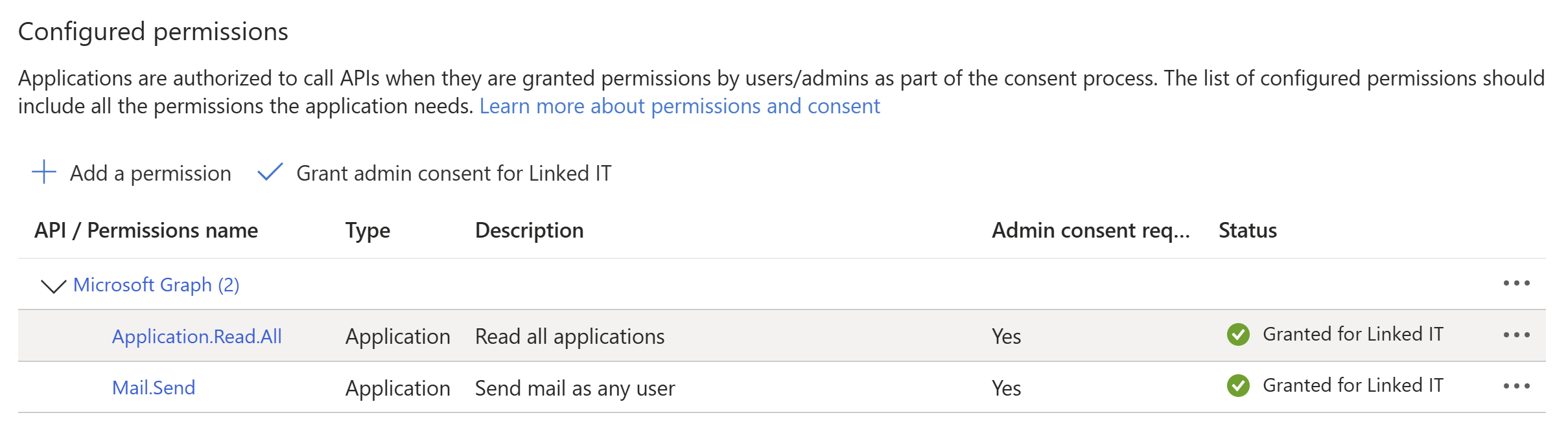
The app registration in this tenant needs the following Microsoft Graph application permissions:
- Application.Read.All
- Mail.Send
Application.Read.All is used to read application registrations and their secret expiry dates.
Mail.Send is used to send the email report.
Other tenants
The other tenants only need to be read.
For each additional tenant, create an app registration with the following Microsoft Graph application permission:
- Application.Read.All
You will also need to grant admin consent for the permission in each tenant.
Create the app registration in each tenant
In each Microsoft Entra tenant:
- Go to Microsoft Entra ID
- Select App registrations
- Select New registration
- Give the app a clear name, for example:
entra-secret-monitor
- Register the application
- Go to API permissions
- Add the required Microsoft Graph application permissions
- Grant admin consent
- Go to Certificates & secrets
- Create a new client secret
- Copy the secret value immediately
You will need the following values for each tenant:
- Tenant ID
- Application/client ID
- Client secret
Create the Azure Automation Account
Next, create the Azure Automation Account that will run the monitoring script.
In the Azure Portal:
- Search for Automation Accounts
- Select Create
- Choose or create a Resource Group
- Enter a name for the Automation Account
Example:
aa-entra-secret-monitor
- Select the region that works best for you
- Leave the remaining settings as default unless you have a specific requirement
- Create the Automation Account
Store the tenant credentials
Once the Automation Account has been created, add the credentials for each tenant.
In the Automation Account:
- Go to Shared Resources
- Select Credentials
- Select Add a credential
- Enter a unique name for the tenant
Example:
Prod-Entra-App
Dev-Entra-App
ExternalID-Entra-App
- In the Username field, enter the application/client ID
- In the Password field, enter the client secret
- Repeat this for each tenant you want to monitor
Install the required PowerShell modules
The runbook uses Microsoft Graph PowerShell modules.
In the Automation Account:
- Go to Shared Resources
- Select Modules
- Select Add a module
- Install the following modules for PowerShell 5.1:
- Microsoft.Graph.Authentication
- Microsoft.Graph.Applications
- Microsoft.Graph.Users.Actions
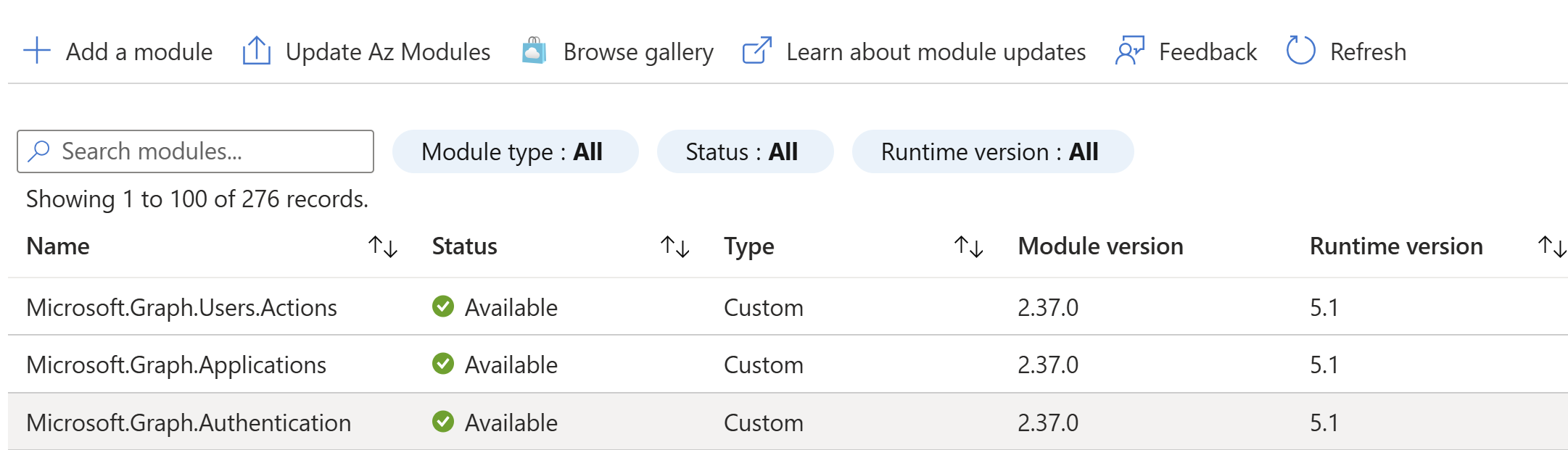
These modules allow the runbook to authenticate to Microsoft Graph, read application registrations, check application secrets, and send the email report.
Create the runbook
Now create the runbook that will run the script.
In the Automation Account:
- Go to Process Automation
- Select Runbooks
- Select Create a runbook
- Give the runbook a name
Example:
Monitor-EntraApplicationSecrets
- Set the runbook type to PowerShell
- Set the runtime version to 5.1
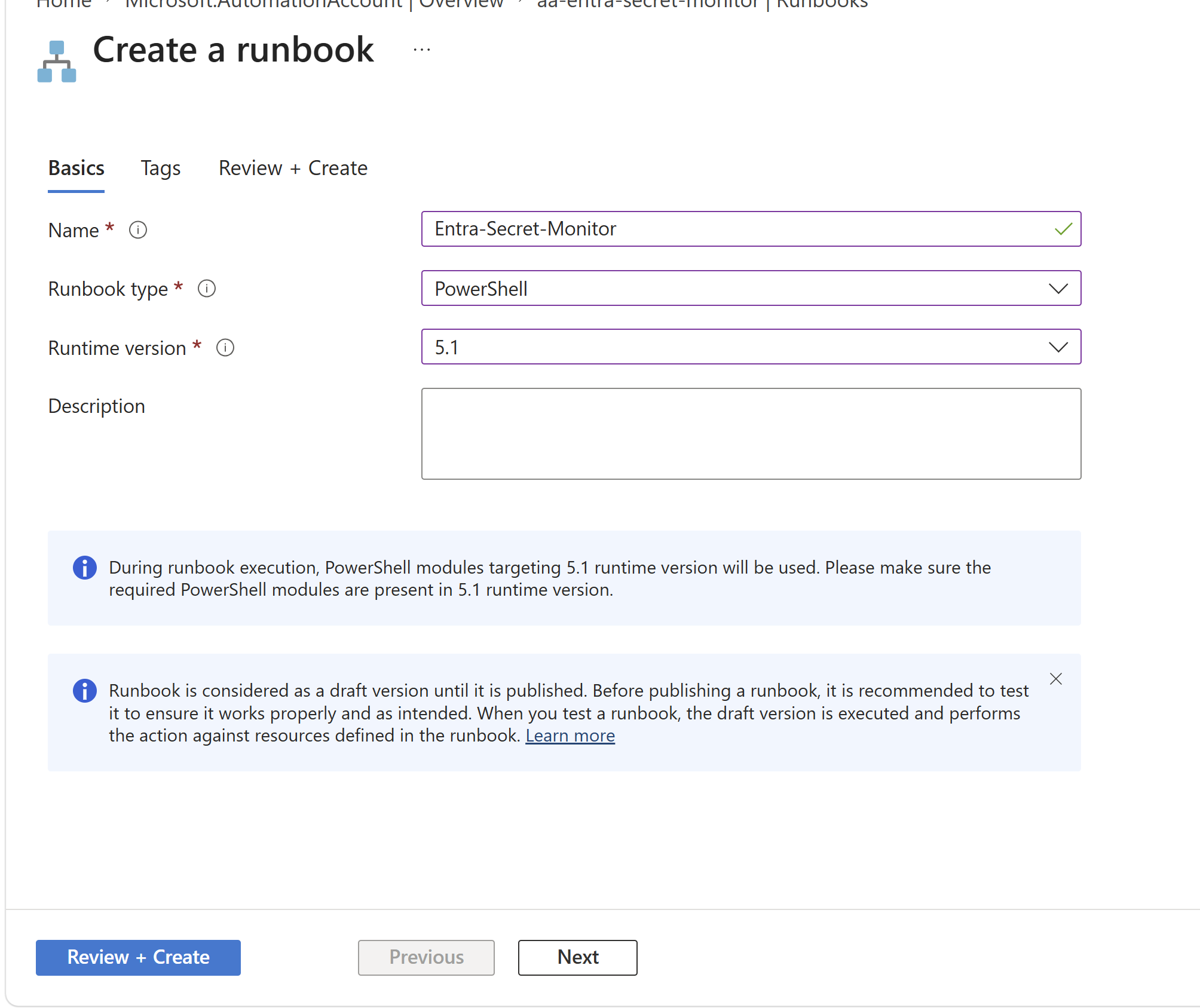
- Create the runbook
- Paste in your PowerShell script
- Save the runbook
- Publish the runbook
My code is available here: Entra-Secret-Monitor.ps1
Configure the tenants to monitor
At the beginning of the script, the $Tenants array defines which Microsoft Entra tenants the runbook will connect to.
Each tenant is added as its own entry in the array:
$Tenants = @(
    @{
        Name = "Tenant 1"
        TenantId = "******"
        CredentialName = "****"
    },
    @{
        Name = "Tenant 2"
        TenantId = "*****"
        CredentialName = "******"
    }
)
Each entry contains three values:
Nameis the friendly name that will appear in the reportTenantIdis the Microsoft Entra tenant IDCredentialNameis the name of the matching credential stored in the Azure Automation Account
The value entered for CredentialName must exactly match the name used under:
Automation Account -> Shared Resources -> Credentials
Select the tenant used to send the email
The script also needs to know which tenant should be used to send the final email report.
In this example, the tenant named LinkedIT is the tenant whose app registration has the Microsoft Graph Mail.Send application permission:
$emailTenant = $Tenants | Where-Object {
    $_.Name -eq "LinkedIT"
}
The first line searches the $Tenants array and selects the entry where the Name value is LinkedIT.
What the script checks
The script connects to each configured tenant using Microsoft Graph and checks application registrations for password credentials.
It looks for secrets that are:
- Already expired
- Expiring soon
- Within the configured warning period
For example, you might configure the script to alert on secrets expiring within the next 30 days. To change the expiry check, update the $DaysThreshold variable.
The report includes details:
- Tenant
- App Name
- App ID
- Expiry date
- Days left
Schedule the runbook
Once the runbook has been tested, add a schedule.
In the Automation Account:
- Open the runbook
- Select Schedules
- Select Add a schedule
- Create a new schedule
- Set it to run daily
- Link the schedule to the runbook
I run mine daily so I get regular visibility of anything that is close to expiring.
Security considerations
This setup uses Microsoft Graph application permissions and Azure Automation Account Credentials, so you should treat the app registrations and stored secrets carefully.
A few recommendations:
- Use the least permissions required
- Only grant Mail.Send to the tenant that sends the report
- Store each tenant secret as an Azure Automation Account Credential
- Rotate the monitoring app secrets regularly
- Limit who can access the Automation Account
- Limit who can create, edit, or view Automation Account assets
- Use clear credential names so each tenant is easy to identify
The monitoring solution is there to help reduce risk, but the monitoring identity itself also needs to be protected.
Final result
After this is configured, you should have a daily email that gives you visibility across all your Microsoft Entra tenants.
This removes the need to manually check each tenant and helps you catch expiring application secrets before they break an integration, automation, or production service.